Creating a New Doctor Folder using MD Match
MD Match is an integrated doctor database that can be used to create a new Doctor Folder by auto-populating information from the Master.
To create a new doctor using MD Match:
- From the Workbench, select Doctor. The Doctor Search window appears.
- Enter the doctor's first and last name or license number in the corresponding fields.
- Select Search. The matching results display. Ensure the doctor does not have an existing profile.
-
Select
MD Match.

The Master Doctor Search window opens and the information entered in the Doctor Search window is auto-populated.
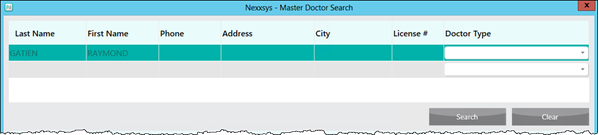
- Select Search. Matching results display at the bottom of the window.

- If there are no matching results and the message No Records Found displays, either check the information entered in the search parameters or a new Doctor Folder needs to be created manually. For more information, see Creating a New Doctor Folder.
- Select the doctor.
- Select OK. The Doctor Folder opens in the main tab with information auto-populated from the Master.
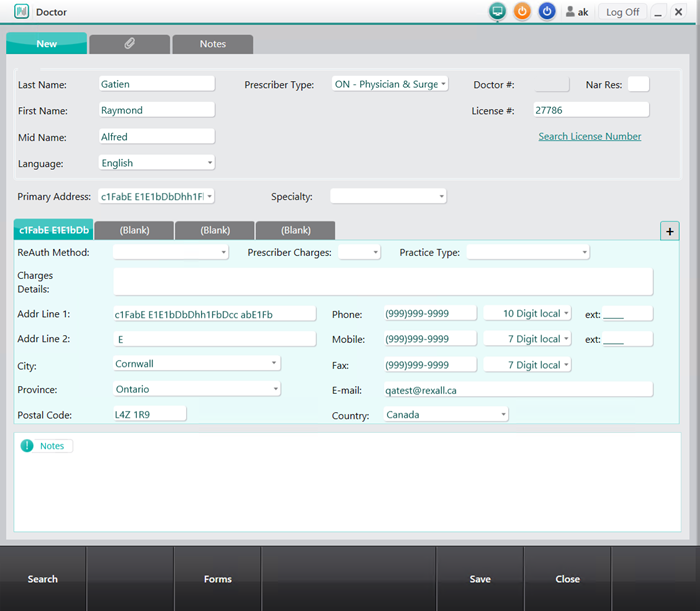
- Enter any missing information, if required.
- Select Save.